
Three formats. Any direction.
Switch a clip to whatever the next app, device or upload form expects.
- .mp4
MP4
Plays almost everywhere: Android, Windows, the web and most social apps.
- .mov
MOV
Apple's QuickTime format. A good fit for iMovie, Final Cut and Mac editing apps.
- .m4v
M4V
Apple's MP4 variant, used by the TV app and iTunes video.
Four taps from import to saved.
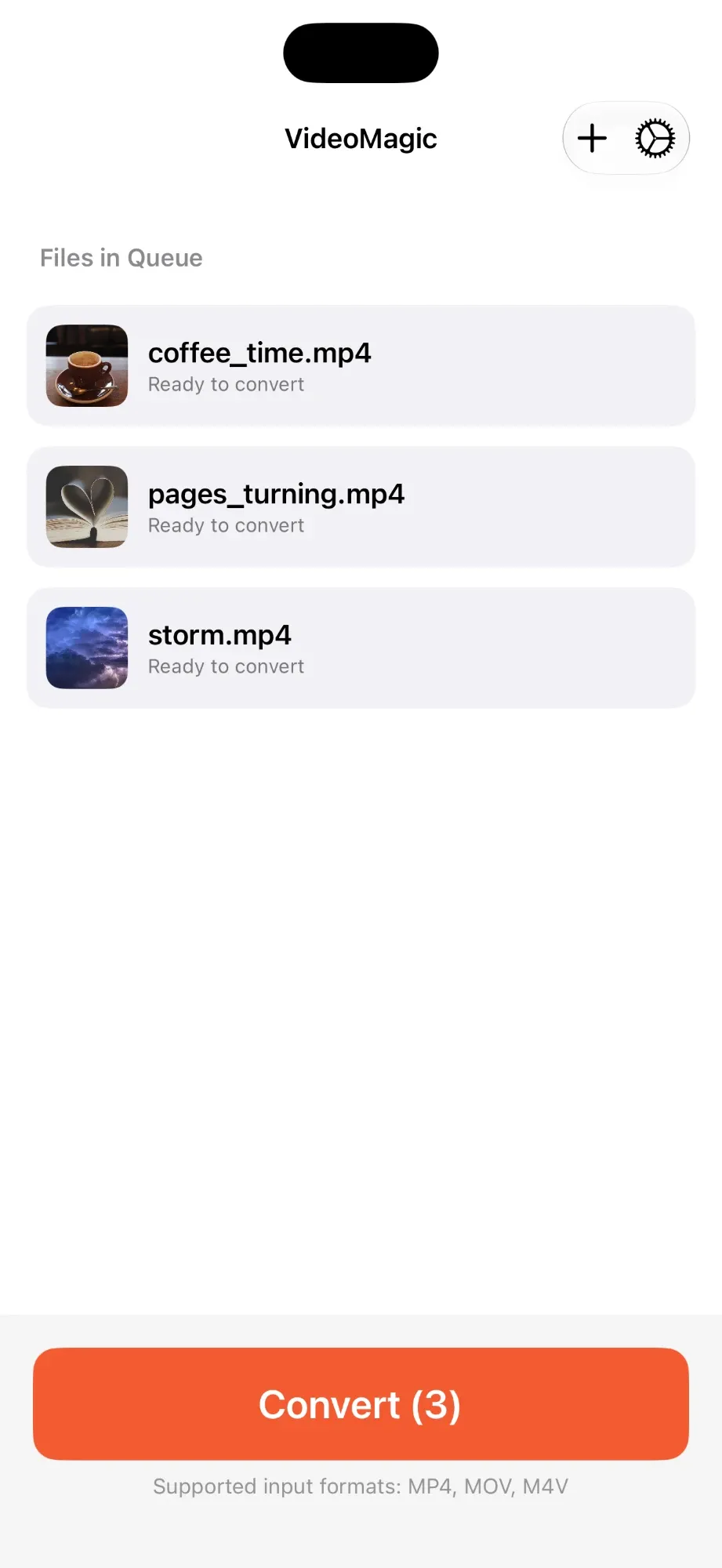 01
01Add your videos
Import several clips at once from Photos or the Files app.
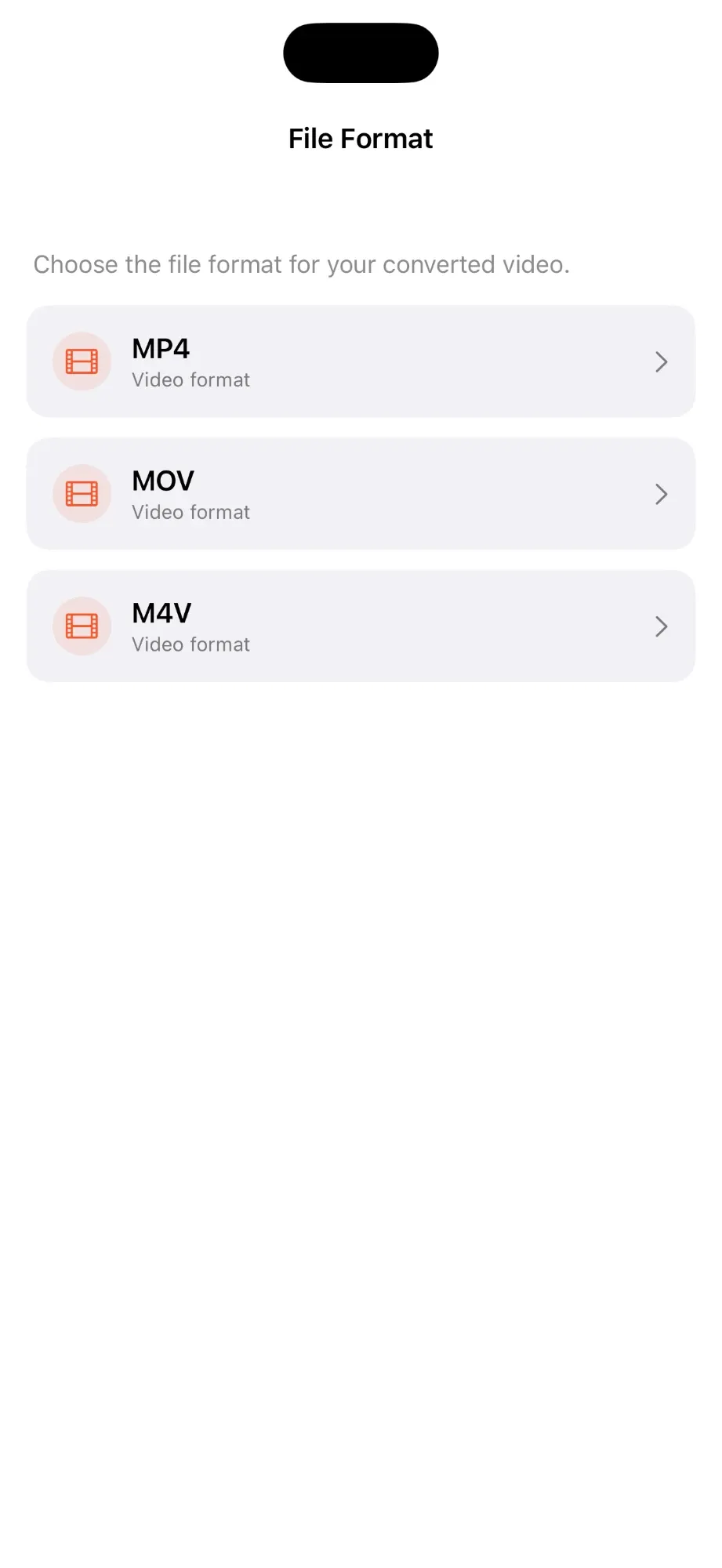 02
02Pick a format
Choose MP4, MOV or M4V for the whole batch.
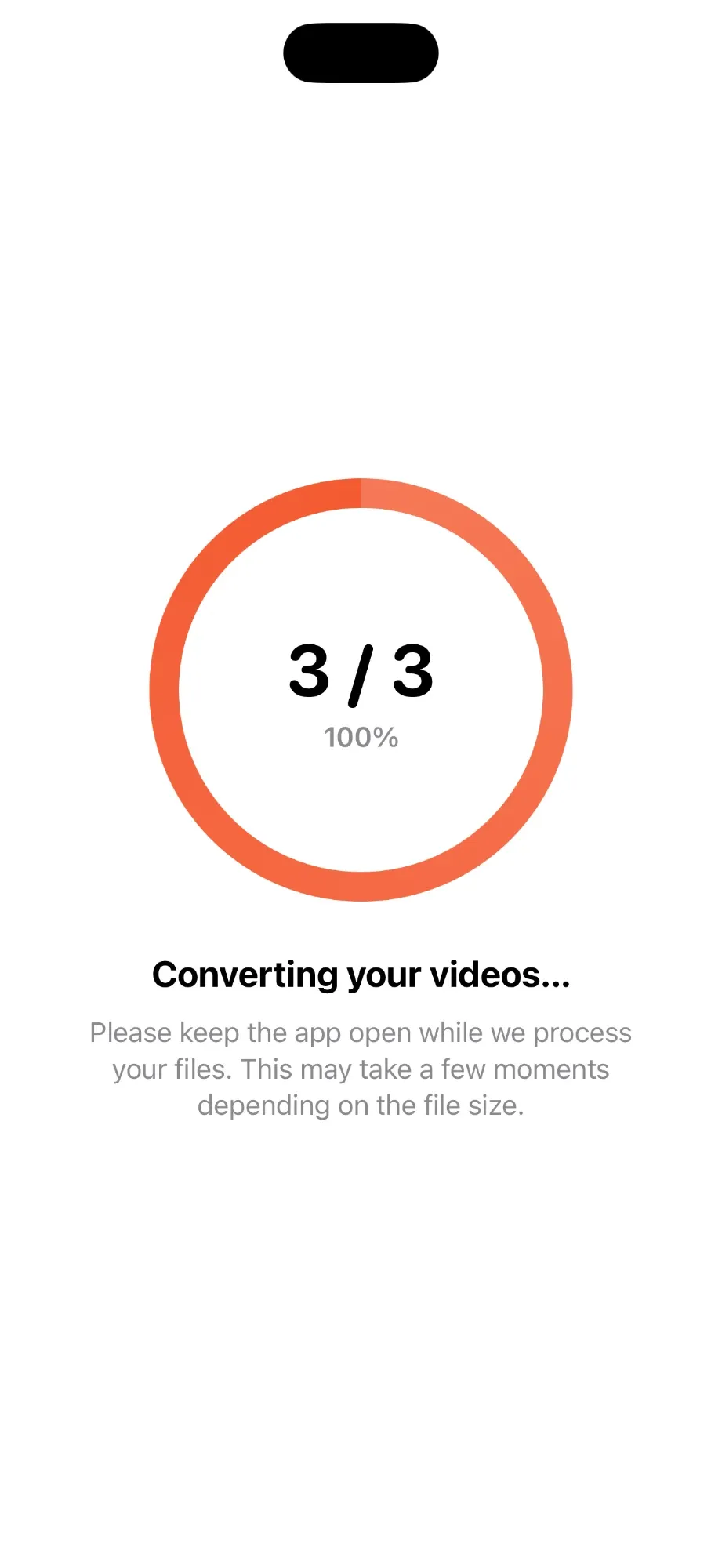 03
03Convert
Progress counts up file by file, so you always know how many are done.
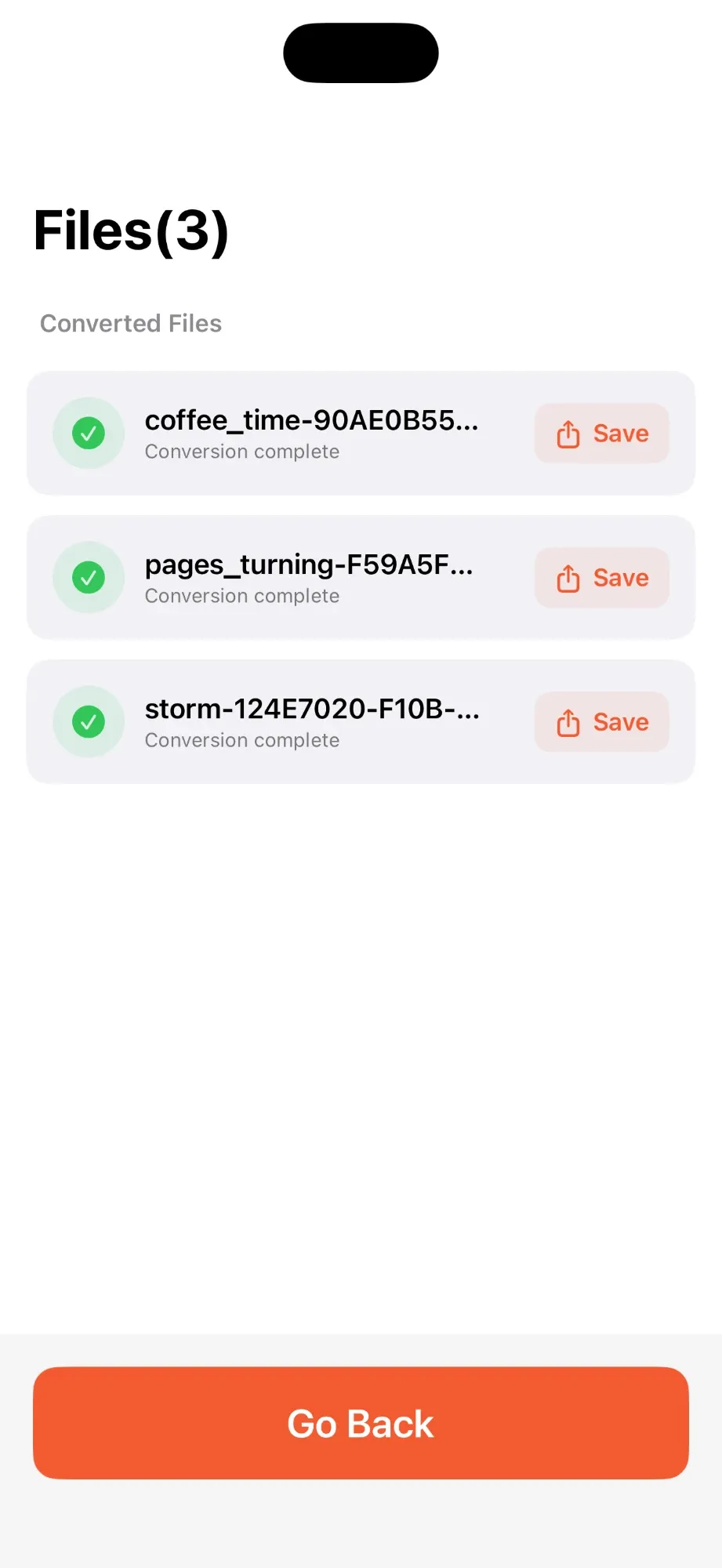 04
04Save anywhere
Tap Save next to a file and choose the folder it goes to.
Built for a whole folder of clips.
Batch conversion
Convert several videos in one run. Up to 2 at a time for free, unlimited with Pro.
Import from Photos or Files
Select multiple videos from your library or any folder.
You choose the folder
Save each converted file exactly where you want it.
iPhone and iPad
One app for both. Requires iOS 16 or later.
Questions
Which formats can I convert between?
MP4, MOV and M4V, in any direction. Each file keeps its name; only the extension changes.
Can I convert several videos at once?
Yes. The free version converts up to 2 videos at a time. With Pro you can convert as many as you like in one batch.
Is the app free?
Yes, it is free to download. Free users have a limited number of conversions per hour and see ads. Pro, an in-app purchase, removes the hourly limit and the ads, and lets you convert more than 2 videos at once.
Where do converted files go?
When conversion finishes, tap Save next to a file and choose the folder you want it in.
Which devices are supported?
iPhone and iPad with iOS 16 or later.